How to Convert PDF to JPG for Free (High-Resolution & 100% Private)
From extracting headshots out of e-Aadhaar cards and NADRA verification slips to converting university transcripts into portal-compliant image uploads, learn how to extract razor-sharp JPEG images from PDF documents without exposing your private credentials to third-party cloud servers.
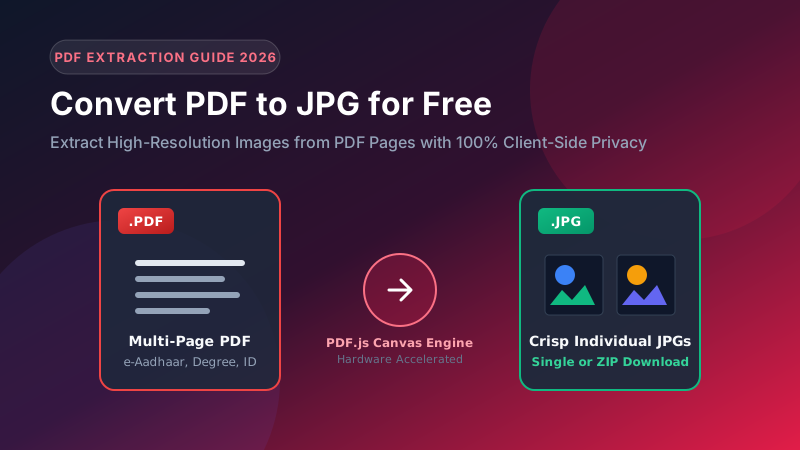
Extract Images from Your PDF in High Resolution Now
Convert any PDF page into crisp JPG photos directly on your phone or PC. Select custom quality scales and download individual images or an instant ZIP bundle.
Launch Free PDF to JPG Converter →1. When and Why You Need to Convert PDF to JPG
While recruitment portals require PDF format for multi-page certificates, numerous application systems enforce the exact opposite requirement for identity photos, signatures, and thumb impressions: they strictly permit JPG or JPEG format only.
Applicants routinely find themselves trapped with documents provided exclusively in PDF format:
- Digital Government IDs: Official identity documents—such as the Indian UIDAI e-Aadhaar or Pakistani NADRA Family Registration Certificate (FRC)—are issued as digitally signed PDF files. If a portal requires your identity card photo as a JPG under 50KB, you must convert the PDF page into an image.
- Digital Scans Provided by Cyber Cafés: Commercial scanning shops frequently save high-resolution scanner feeds directly into a multi-page PDF rather than providing individual image files.
- University Grade Cards and Certificates: Modern degree awarding institutions issue verified e-transcripts in PDF format, but state recruitment exam portals frequently demand single-page JPG image uploads of each marksheet.
2. The Science of PDF Rasterization (Vectors to Pixels)
A PDF document is not simply a static picture. It is a sophisticated, object-oriented document program written in a PostScript-derived vector description language. A single PDF page contains multiple distinct layers:
- Vector Path Operators: Bézier curve commands (
m,l,c,re) that draw geometric seals, table borders, and divider lines. - Typeface Glyphs: Font dictionaries containing TrueType or Type 1 vector glyph outlines representing text characters.
- Raster XObjects: Embedded JPEG or PNG bitmap streams representing physical photographs and scanned pages.
To convert a PDF into a JPG, a software engine must execute a process called Rasterization. The rasterizer parses every vector command, renders every typographic glyph using its embedded font metrics, composites any background colors, and paints the final visual result onto a 2D pixel grid known as an HTML5 Canvas. Once painted onto the canvas, the browser extracts the pixel matrix as a standard JPEG byte stream.

3. Viewport Scale vs. DPI: Eliminating Blurry Output
The single most common complaint users have with generic online PDF-to-JPG converters is that the extracted images turn out blurry, pixelated, and unreadable. Understanding the math behind rasterization scale explains why this happens:
By default, the PDF coordinate system defines an A4 page as 595.28 × 841.89 points based on 72 points per inch (the standard 72 DPI screen baseline). If a converter renders the page at a default Scale factor of 1.0x, the resulting canvas image measures exactly 595 × 842 pixels. On a mobile phone screen or printed laser sheet, 595 pixels across an entire A4 page means fine text and institutional seals become a fuzzy blur!
| Render Scale Factor | Effective DPI | Output Dimensions (A4 Page) | Clarity Level | Recommended Use Case |
|---|---|---|---|---|
| Scale 1.0x | 72 DPI | 595 × 842 px | Low (Blurry fine print) | Fast web thumbnail preview |
| Scale 2.0x (Optimal) | 144 – 150 DPI | 1190 × 1684 px | Razor-Sharp (Full legibility) | Job forms, exam portals, marksheet verification |
| Scale 3.0x | 216 DPI | 1785 × 2526 px | Master Print Quality | Archival scanning, large photographic prints |
Why Pagla Tool Defaults to Scale 2.0x: At Scale 2.0x, an A4 page is rasterized to nearly 2 megapixels (1190×1684 px). Micro-printed serial numbers, barcode stripes, and signature strokes remain crisp and completely readable by automated optical character recognition (OCR) systems while keeping the resulting JPEG file weight under 300KB.
4. Step-by-Step Conversion Workflow (Mobile & PC)
Converting a PDF document into individual high-definition JPEG images takes less than 5 seconds using Pagla Tool's client-side converter:
- Open the Tool: Navigate to Pagla Tool PDF to JPG in any modern browser (Chrome, Edge, Safari, Firefox).
- Select or Drag Your PDF: Tap "Choose PDF Document" or drag your PDF file directly into the designated drop area.
- Choose Render Quality: By default, the tool selects High (2.0x scale / ~150 DPI). If you require archival print resolution, select Maximum (3.0x).
- Instant Page Rendering: Our self-hosted WebAssembly/JS PDF engine parses the document structure and displays visual preview cards for every page in real time.
- Download Your Images: Click "Download JPG" beneath any individual page, or click "Download All as ZIP" to receive all pages packed into a single organized archive.
5. Handling Multi-Page Documents & ZIP Batch Archives
When converting a 10-page document or a multi-chapter report, clicking "Save Image" ten individual times is tedious and prone to missing pages. Many browsers also trigger annoying pop-up blocker warnings when a web page tries to trigger multiple simultaneous file downloads.
To eliminate this friction, Pagla Tool incorporates a lightweight, pure-JavaScript PKZIP archive encoder. Once all pages are rendered to canvas, the tool encodes each image as a JPEG binary buffer and structures them inside a standard .zip file format (complete with Local File Headers, Central Directory Headers, and CRC32 checksums). When you click "Download All as ZIP", a single file named paglatool-pdf-pages.zip saves immediately to your Downloads folder.

6. Troubleshooting Encrypted PDFs & Font Glitches
Occasionally, applicants encounter specialized PDF files that trigger rendering errors. Here are the root causes and quick resolutions:
1. Password-Protected PDFs (e-Aadhaar, Bank Records)
Government e-Aadhaar cards and banking statements are locked with AES-128 or RC4 encryption. Web browsers cannot access the internal page objects without the user decrypting the document. Fix: Open the PDF in Chrome or Adobe Reader, type your password, press Ctrl + P (or Print on mobile), select "Save as PDF", and save an unencrypted copy before uploading.
2. Mobile Out-Of-Memory (OOM) on 50+ Page Documents
On low-RAM mobile devices, rendering fifty 2-megapixel canvas elements simultaneously can exhaust mobile browser heap limits. Pagla Tool solves this by rendering pages sequentially and recycling canvas buffers to prevent browser tab crashes.
3. Non-Standard Asian CID Fonts (Urdu / Hindi Characters)
If a PDF was created using localized Urdu or Hindi desktop publishing software without embedding full TrueType font sets, missing character glyphs can render as blank boxes. Our self-hosted engine includes Adobe CMap binary tables ensuring multi-byte Unicode scripts render with 100% typographic fidelity.
7. Cropping and Compressing Extracted Photos for Form Uploads
Converting a PDF page to a JPG is frequently only the first step. If you extracted a full A4 PDF page to obtain your passport headshot or signature, the resulting image contains the entire certificate or identity document. You must crop the specific element and ensure the file size conforms to portal guidelines.
Seamless two-step workflow using Pagla Tool's companion utilities:
- Step 1 — Crop to Exact Dimensions: Load the extracted JPG into our Passport Size Photo Maker (for 3.5×4.5 cm portraits) or Signature Resizer (for 140×60 px signatures). Use the interactive crop grid to position the face or ink strokes perfectly.
- Step 2 — Target Exact Kilobyte Ceilings: If the portal demands a strict size under 20KB or 50KB, use Image Compress 20KB or Image Compress 50KB. The binary search compression algorithm locks the output exactly below the limit without blurring facial features.
8. Cloud Converters vs. Client-Side Browser Security
Traditional online file conversion sites monetize user traffic either through intrusive advertisements or by harvesting metadata from uploaded files. When you submit official identity credentials, marksheets with roll numbers, or personal affidavits to remote servers, you have zero guarantee regarding how long your files are cached or who has access to them.
The Pagla Tool Privacy Guarantee: All document parsing, vector rasterization, canvas drawing, and image encoding take place 100% on your device inside the sandboxed JavaScript runtime of your browser. Disconnect your Wi-Fi or turn on Airplane Mode after loading the page—the tool continues to convert PDF pages flawlessly! Zero bytes of your sensitive records ever touch a remote server.
9. Frequently Asked Questions
Why do some online PDF to JPG tools produce blurry images?
Most basic converters render PDF pages at standard screen resolution of 72 DPI (Scale 1.0x). Because an A4 page at 72 DPI measures only 595x842 pixels, fine details like passport serial numbers, stamp engravings, and small fonts become pixelated. Pagla Tool uses a high-definition rendering multiplier (Scale 2.0x, equivalent to 144–150 DPI) producing 1190x1684 pixel outputs where official marks remain completely crisp.
Can I convert password-protected or encrypted PDF documents?
If a PDF is protected by an open password (such as an official e-Aadhaar or digital salary slip), you must enter the password to view it. To convert it, open the PDF in your browser or Adobe Reader, enter your password, select 'Print to PDF' to create an unencrypted copy, and then load that file into Pagla Tool's converter.
Can I download all pages of a 10-page PDF at once?
Yes. Pagla Tool allows you to either download individual pages with a single click or click 'Download All as ZIP'. The client-side PKZIP generator bundles all extracted high-resolution JPEG pages into a single ZIP archive right in your browser memory.
Are my sensitive identity documents safe during conversion?
Yes, 100%. Unlike cloud converters that transfer your files to external servers, Pagla Tool uses self-hosted PDF.js running entirely inside your local browser tab. Not a single packet of your document data leaves your device, guaranteeing total privacy.
How do I extract just my passport photo from a full-page PDF document?
First, convert the relevant PDF page to a high-resolution JPG using our PDF to JPG tool. Once downloaded, open our Passport Size Photo Maker tool, upload the JPG, and use the interactive cropping tool to zoom and crop directly around your head and shoulders to create an official 3.5x4.5 cm portrait.
10. Summary & Best Practices
Extracting individual high-resolution JPEG images from PDF documents is straightforward when you utilize modern client-side rasterization. By choosing a 2.0x scale factor to protect typographic sharpness, utilizing automated ZIP archiving for multi-page documents, and keeping all image processing local to your device, you ensure effortless compliance with strict recruitment portals while safeguarding your personal identity.