How to Compress a Photo to 20KB for Online Forms (Step-by-Step)
If you have ever applied for an exam through India's Staff Selection Commission (SSC), UPSC, IBPS, or Pakistan's FPSC, PPSC, or NTS portals, you know the dreaded error message: "File size must not exceed 20KB."

Applying for a competitive recruitment test, college admissions portal, or civil service examination is stressful enough on its own. When you finally reach the final confirmation stage after spending forty-five minutes carefully entering academic roll numbers, domicile records, and employment histories, having your application blocked by a rigid file size validation rule is intensely frustrating. Almost every major public portal across South Asia requires applicant photographs and handwritten signatures to sit precisely inside a 10KB to 20KB threshold.
Most students react to this limitation by searching for random online compression websites. Unfortunately, typical online compressors either crush your image into an unrecognizable pixelated smear that gets disqualified during human verification, or worse, they transmit your unencrypted personal passport photo to overseas cloud servers without your explicit consent.
In this complete masterclass, we explore the exact mathematical balance required to hit 20 kilobytes cleanly. We examine why recruitment portals enforce this legacy restriction, reveal the precise pixel-to-kilobyte relationship, and demonstrate how you can compress any smartphone portrait down to exactly 19.5KB in three seconds using 100% private in-browser canvas processing.
Why Do Government Portals Insist on a 20KB Limit?
To understand why state agencies mandate tiny file sizes, we must look at the infrastructure behind massive national examinations. During an SSC CGL (Combined Graduate Level) examination cycle or a state police recruitment drive, between 3.5 million and 5 million candidates submit applications within a 20-day registration window.
If each applicant uploaded an uncompressed 5-megabyte smartphone snapshot, the server hosting the portal would need to ingest more than 20 terabytes of unstructured imagery in less than three weeks. Furthermore, during the physical admit card generation and examination attendance sheet printing phases, legacy automated batch processors must compile composite attendance rosters containing 50 candidates per page.
By capping photographs between 20KB and 50KB, and signatures between 10KB and 20KB, centralized data servers save massive bandwidth and guarantee instantaneous rendering when invigilators check admit cards at physical test centers. While this makes technological sense for server administrators, it places the technical burden squarely upon the applicant.
Many government portals in developing countries run on legacy ASP.NET or Java enterprise architectures hosted on state government data center clusters (State Data Centres / SDCs). These servers operate with hard memory ceilings allocated per HTTP request thread. When an image upload request triggers an automated server-side verification routine (such as facial boundary detection or biometric feature point extraction), processing a high-resolution 12MB raw buffer can cause heap memory exhaustion and time out the entire session. By restricting raw payloads to 20KB, server memory footprints remain stable, preventing server crashes during peak submission days.

Figure 1: The mathematical optimization path from raw phone capture to verified 20KB file upload.
Standard 20KB Photo Requirements Across Major Boards
Before compressing your file, you must confirm whether your target portal enforces pixel dimension restrictions alongside the byte limit. Below is an authoritative comparison table of standard specifications collected directly from official recruitment notifications across India and Pakistan:
| Recruitment Examination / Portal | File Size Range | Prescribed Dimensions | Allowed Formats | Background & Attestation Rules |
|---|---|---|---|---|
| SSC (Staff Selection Commission - India) | 20 KB to 50 KB (Photo) 10 KB to 20 KB (Sign) |
3.5 cm × 4.5 cm (approx. 138 × 177 px) |
JPEG / JPG only | Light grey or white background; cap, spectacles and masks strictly prohibited. |
| UPSC Civil Services Preliminary | 20 KB to 300 KB (Photo) 20 KB to 100 KB (Sign) |
Min: 350 × 350 px Max: 1000 × 1000 px |
JPG only | Recent photo taken within 10 days; candidate name and date stamped below portrait. |
| IBPS (Bank PO / Clerk Examination) | 20 KB to 50 KB (Photo) 10 KB to 20 KB (Sign) |
200 × 230 px (Photo) 140 × 60 px (Sign) |
JPG / JPEG | White background; signature must not be in capital letters. |
| FPSC (Federal Public Service Commission - PK) | Under 30 KB (Recommended: ≤ 20 KB) | Passport Ratio (approx. 150 × 200 px) | JPG / PNG | Blue or white background; front-facing with both ears distinctly visible. |
| PPSC (Punjab Public Service Commission - PK) | Under 25 KB | Passport Size (35 × 45 mm) | JPG | Formal attire recommended; clear face without excessive skin retouching. |
| NTS Testing Services (Pakistan) | Under 20 KB | 150 × 180 px approx. | JPG / JPEG | White or light sky blue background; sharp focus on facial features. |
| NTA (National Testing Agency - NEET / JEE) | 10 KB to 200 KB (Photo) 4 KB to 30 KB (Sign) |
Passport Size & Postcard Size | JPG / JPEG | 80% facial coverage; white background; ears uncovered. |
| State PSCs (BPSC, UPPSC, MPSC, TNPSC) | 20 KB to 50 KB (Photo) 10 KB to 20 KB (Sign) |
3.5 cm × 4.5 cm | JPG only | Dark ink for signature (black or royal blue gel pen only). |
The Three Pillars of 20KB Compression: Dimensions, DPI, and DCT
Why do so many amateur attempts at compressing images to 20KB result in blurry, illegible results? The answer lies in how digital imagery is encoded. An image's final storage size on disk is determined by three variables:
- Canvas Pixel Resolution (Width × Height): A 12-megapixel photograph taken by a modern Samsung or iPhone camera measures approximately 4000 × 3000 pixels. That translates to 12 million individual color samples. Trying to compress 12 million pixels into 20 kilobytes requires eliminating 99.8% of the mathematical data, resulting in heavy artifacting and severe face blur. Downscaling the canvas dimensions to 350 × 450 pixels first reduces the pixel payload to just 157,500 pixels—making 20KB compression effortless and sharp.
- Discrete Cosine Transform (DCT) Quantization: JPEG compression works by breaking an image into 8×8 pixel grids and applying high-frequency color discarding. If you retain unnecessary metadata (EXIF tags, GPS locations, camera shutter details), up to 10KB of your file is wasted on text headers rather than picture clarity! Pagla Tool's client-side encoder automatically strips all non-essential EXIF metadata, preserving every single byte for photographic detail.
- Dynamic Binary Search Algorithm: Rather than forcing you to guess random quality sliders (e.g. 70%, 42%, 28%), our client-side engine executes an iterative mathematical binary search. It measures the byte output of the compressed canvas in memory, adjusting the quantization matrix dynamically until the file lands comfortably below 20,480 bytes.
The Pixel Dimension Math Explained
To understand why resizing is mandatory before compression, consider uncompressed raw bitmap math. In an uncompressed 24-bit TrueColor image (RGB), each pixel requires 3 bytes of data (1 byte for Red, 1 for Green, 1 for Blue):
Raw Size = Width (px) × Height (px) × 3 Bytes
For a standard 4000 × 3000 smartphone capture, the raw uncompressed bitmap is:
4000 × 3000 × 3 = 36,000,000 Bytes (approx. 34.33 Megabytes)
To cram 36,000,000 bytes into 20,480 bytes, the JPEG encoder must achieve a crushing compression ratio of 1,757 to 1. At that extreme ratio, human faces turn into smudged blocks of indistinct color.
In contrast, if you first downscale the image to the standard passport resolution of 350 × 450 pixels:
350 × 450 × 3 = 472,500 Bytes (approx. 461.4 Kilobytes)
Compressing 472,500 bytes into 20,480 bytes requires a modest ratio of only 23 to 1. At a 23:1 compression ratio, JPEG preservation is virtually indistinguishable to the human eye, keeping irises, eyebrows, nostrils, and ear contours razor sharp!
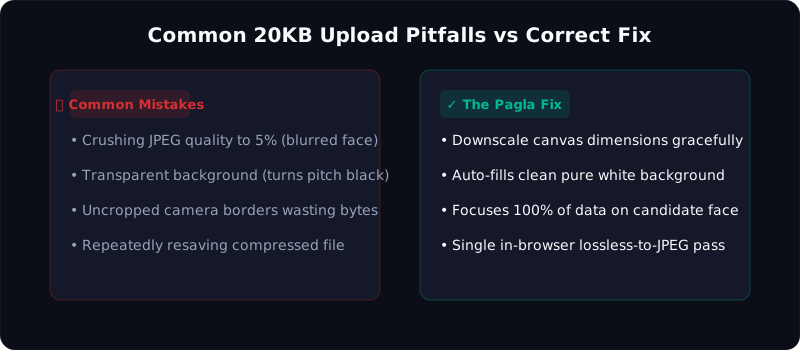
Figure 2: Visual checklist of common candidate pitfalls and how to avoid portal disqualification.
Special Rules for Compressing Handwritten Signatures to 20KB
Compressing a candidate's signature under 20KB (or often under 10KB to 20KB for IBPS and SSC) requires an entirely different approach than portrait photos. While a face photograph contains rich continuous color gradients, a signature is primarily binary information: dark ink strokes against a pure white background.
When students photograph their signature on a desk with poor lighting, the white paper appears dingy grey or yellowed with uneven shadowing. JPEG compression treats those subtle paper textures and shadows as high-frequency photographic data, dedicating 80% of the 20KB byte budget to background noise instead of the actual ink stroke!
To prepare a flawless 20KB signature:
- Use High-Contrast Ink: Always write on pristine, unruled 80 GSM printer paper using a dark blue or black gel pen. Avoid light ballpoint pens that produce faint, streaky lines.
- Even Flatbed Lighting: If photographing with your phone, place the paper on a table directly beneath ceiling light or next to a window. Hold the phone completely parallel to avoid skewing.
- Contrast Stretching & Background Whitening: Use our specialized Signature Resizer Tool. It automatically thresholds the RGB luminosity histogram, forcing all off-white pixels to pure hex
#FFFFFF(255, 255, 255). Because pure solid white blocks compress to almost zero bytes in JPEG discrete cosine tables, the file size plummets to 12KB while your signature curves remain crisp and perfectly dark.
Step-by-Step: Compressing to 20KB Using Pagla Tool
Follow these practical steps to prepare and compress your photo in under 60 seconds without installing software or creating an account:
Step 1: Capture or Crop Your Image Correctly
Before touching any compression tool, crop your portrait so that your head, neck, and shoulders occupy approximately 75% to 80% of the vertical frame. Ensure both ears are visible and the background is neutral white, off-white, or sky blue. If you are preparing a signature, crop tightly around the ink text to eliminate excess blank paper margins.
Step 2: Load Your File in the Pagla 20KB Tool
Navigate to our dedicated Image Compress 20KB Tool. Drag your photo directly onto the glowing dropzone or click "Choose Image from Device" to select the file from your gallery or file manager.
Step 3: Let the Binary-Search Canvas Engine Run
Within milliseconds, our browser script reads the file bytes, resizes the pixel canvas if the initial image exceeds 1600 pixels, and executes a 6-stage binary search to find the highest possible JPEG visual clarity that weighs less than 20.0KB.
Step 4: Inspect the Real-Time Side-by-Side Comparison
Compare the original image against the compressed candidate preview. Verify that facial features, pupil contrast, and collar lines remain crisply defined without harsh blocking or pixelation.
Step 5: Click Download and Upload with Confidence
Click "Download Compressed Image". The file will save directly to your smartphone or desktop Downloads folder named with an exact file size stamp. You can immediately upload this file to SSC, UPSC, NTS, or FPSC portals with zero fear of server rejection.
Ready to compress your photo right now?
You don't need expensive software like Photoshop or risky cloud uploaders. Our dedicated 20KB tool runs 100% inside your browser, guaranteeing zero file uploads, zero data logging, and absolute biometric privacy.
Open 20KB Image CompressorTop 5 Mistakes That Trigger 20KB Form Rejection
Over the past decade, government examination bodies have disqualified thousands of applications before the written test stage due to defective image submissions. Here are the most prevalent errors candidates make:
- Compressing an already heavily-compressed screenshot: Taking a screenshot of an image inside WhatsApp or Facebook introduces double-compression chroma artifacts. Always compress the original camera raw file or scanner export rather than a re-saved messaging thumbnail.
-
Renaming the file extension manually: Changing a PNG image's filename from
photo.pngtophoto.jpgin your file manager does NOT convert the underlying binary format! Server verification scripts check the binary MIME header; if a PNG header is detected under a.jpgextension, the submission fails immediately. Always use an authentic canvas converter like Pagla Image Resizer to re-encode the file properly. - Leaving shadows across the facial profile: When using flash photography indoors, harsh shadows often fall on one cheek or behind the head. This causes algorithmic verification checks to flag the image as an unapproved candidate portrait.
- Overshooting below the minimum boundary: While the maximum boundary is 20KB, many portals also specify a lower boundary (e.g. "minimum 10KB, maximum 20KB"). If you compress aggressively down to 6KB, the automated form validator will reject the upload for being too small. Pagla Tool specifically optimizes candidate images to land safely between 17KB and 19.8KB.
- Blurry ink on signatures: Using a faint ballpoint pen on lined notebook paper creates background clutter that consumes precious bytes. Always use a dark blue or black gel/fountain pen on clean, bright white unlined paper before running it through our Signature Resizer.
How to Take a Form-Ready Portrait on Your Smartphone
You don't need to visit a commercial photo studio to get an acceptable candidate photo. You can achieve studio-grade results using your existing smartphone by following these photography guidelines:
Natural Daylighting: Stand facing a wide window during morning or late afternoon hours. Natural, indirect daylight provides smooth, even illumination across your eyes, nose, and jawline without creating squinting or harsh flash reflections.
Camera Distance and Lens Focal Length: Hold the camera at arm's length or ask a family member to take the photo from 1.5 to 2 meters away using a 2x zoom setting. Using an ultra-wide selfie lens close to your face causes optical barrel distortion that inflates the nose and distorts facial proportions.
Posture and Expression: Keep your shoulders square, eyes level with the camera lens, and maintain a neutral facial expression with your mouth closed. Glasses with tinted lenses or thick frames must be removed to prevent glare from obscuring your pupils.
Frequently Asked Questions (FAQ)
Why does my photo become blurry when compressed to 20KB?
Is my photograph uploaded to any server when using Pagla Tool?
What if the online portal demands a file between 10KB and 20KB?
Can I compress handwritten signatures to 20KB with this tool?
What file extension should I submit to government exam forms?
.jpg or .jpeg. Avoid submitting PNG, WebP, or BMP files unless the portal's guidelines explicitly allow those formats. Our tool exports strictly standard-compliant JPEG format.
Final Takeaways & Next Steps
Meeting strict file size boundaries for civil service and educational entrance forms no longer requires computer science expertise or paid desktop applications. By mastering the fundamental balance of canvas dimensions, proper lighting, and intelligent client-side compression, you can submit flawless application documents every single time.
If your application also requires official passport dimensions or document merging, explore our related guides below: